Overview
R is a free, open source coding language. It is frequently used for data analysis, although it can also be used to build websites with R Shiny.
RStudio
RStudio is a free integrated development environment (IDE), which provides a user-friendly interface to create and maintain R projects. RStudio is a free program that can be downloaded and installed on your computer. To run RStudio, you must also download R.
Posit Cloud is a cloud based website that runs RStudio from the browser. The primary advantages of Posit Cloud are that nothing needs to be installed, projects can be shared between users, and it automatically uses the latest version of R. The downsides are that an account is required, it only allows 25 hours of free use per month, and an internet connection is required.
Layout
The default RStudio layout includes four windows, each with multiple tabs. The most important tabs and their locations are shown below:
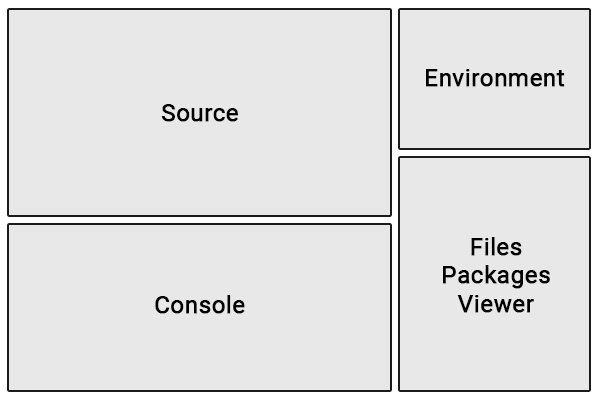
Here is a brief overview of what each tab does:
- Source: View, edit, and run R scripts
- Console: Type R commands. Also displays messages, warnings, and errors when code is run.
- Environment: View stored variables.
- Files: View folders and files. Add, open, rename, or delete files here.
- Packages: Install or update R packages.
- Viewer: View rendered files.
You can customize R Studio’s appearance and behavior under Tools > Global Options.
Projects
Every RStudio project must be placed in its own folder, and WQdashboard is no exception. The data, code, and documents are all stored in specific places, so do not rename or move any of the files or folders unless you are experienced with R. The following files and folders are especially important:
- data
- data-raw
- DESCRIPTION
- inst
- R
- tests
- wqdashboard.Rproj
Starting a Project
RStudio
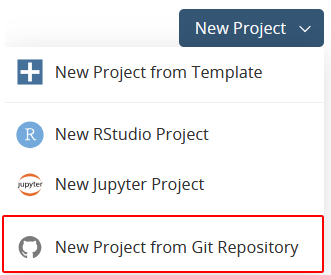
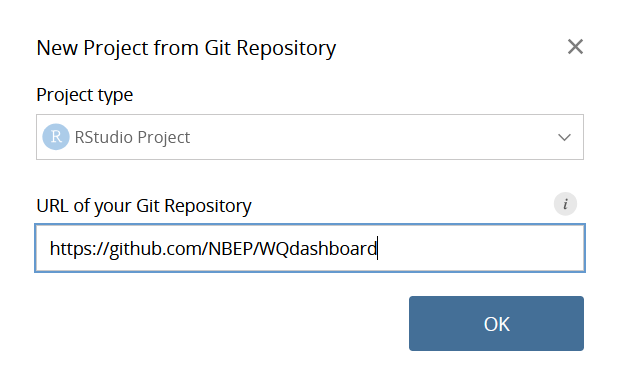
To run WQdashboard from RStudio, download WQdashboard from
github. Unzip the folder and open
wqdashboard.Rproj.
Running a Script
Once you have uploaded WQdashboard to RStudio or Posit Cloud, find
the Files window and open the data-raw folder.
All of the scripts you need to add data or run WQdashboard can be found
in this folder, and have been numbered in the order they should be fun.
Each script contains detailed instructions at the top of the file. Make
sure you start with 00_install.R, especially if this is
your first time using WQdashboard.
To run a script, use CTRL + SHIFT +
ENTER on a Windows computer or CMD +
SHIFT + ENTER on a Mac.
IMPORTANT Do NOT use the “Run” button at the top of the source window - this button will only run the current line or any highlighted text, not the entire script.
Packages
Due to its open source nature, R’s capabilities can be greatly
expanded by downloading packages containing custom
code. WQdashboard uses multiple packages, including R
Shiny, importwqd,
and wqformat.
WQdashboard can not run unless these packages are
installed. To download all of the required packages, run
data-raw/00_install.R.
Packages may be updated from time to time in order to fix bugs or add new features. If you are prompted to update packages, do so.
To manually install or update packages, select the “Packages” tab in the lower right window. The “Install” and “Update” buttons can be used to add or update packages.